Connect your Instagram account
Open Accounts in your workspace and press Connect Instagram. You sign in on Meta's own screen, pick the Instagram account, and it appears in your workspace. You need an Instagram Business or Creator account. HypeMyBrand never sees your password.
Where this stands today. Direct posting is not open to every account yet. Meta is still reviewing the HypeMyBrand connection, so its screen may say the business is not available. Until your account is let in, Save slides and Send to my phone work on every paid plan, and you post from your phone.
Before you start
- An Instagram Business or Creator account. A personal account cannot be posted to by any outside tool. Switching is free in the Instagram app, under Settings, then Account type and tools.
- The Facebook login that manages that Instagram account. The sign-in screen is Meta's, not ours.
- A paid HypeMyBrand plan. Posting and scheduling are not part of the free account.
Step by step
Open Accounts
In your workspace, look at the menu on the left. Accounts is under Setup. On a phone it is under More. The first card is called Post straight to Instagram.
Press Connect Instagram
A Meta window opens. Sign in with the Facebook login that manages the Instagram account you want to post to.
Pick the account and allow the permissions
Meta asks which business portfolio and which Instagram account to share. Then it lists what HypeMyBrand is asking for: basic account details, publishing content and reading the numbers on your posts. Publishing is what lets a post go out. The numbers fill your Analytics page. There is no permission for messages or comments, because HypeMyBrand does not use them.
Check that it arrived
You land back on Accounts and the card shows your handle with the date it was connected. From now on every post has a time box and a Post now button.
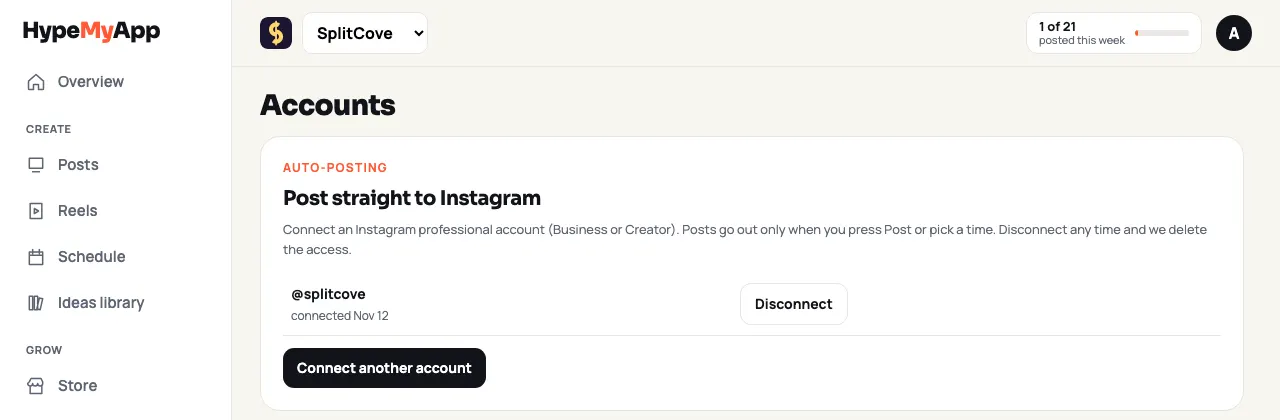
Accounts, with one Instagram account connected. More than one business or account
Press Connect another account to add a second one. Then press Use for next to the account each business should post to. Until you choose, nothing posts for that business.
Disconnect removes the stored access straight away and cancels anything scheduled for that account.
If it does not work
Related docs
- Schedule your first post
- Is it safe to connect my Instagram to HypeMyBrand?
- What is a trial reel on Instagram?
- Does HypeMyBrand post to TikTok for me?
Still stuck? Email team@apsteq.com with what you tried and what you saw. A person answers, and the fix goes on this page.